Wireframing Templates for Magento Commerce With User Experience Notes
Click below to view the PDF and/or download the templates files:
- PDF of wireframe templates: magento-wireframes
- ZIP of Adobe Illustrator files: magento-wireframes The following is a summary of the annotations that accompany the wireframe templates. These notes can be used to establish/inform your client of the user experience(s) that can be expected from an online store build with magento commerce.
The following is a summary of the annotations that accompany the wireframe templates. These notes can be used to establish/inform your client of the user experience(s) that can be expected from an online store build with magento commerce.
<!--more-->
Project : Online Storefront
Page: Home
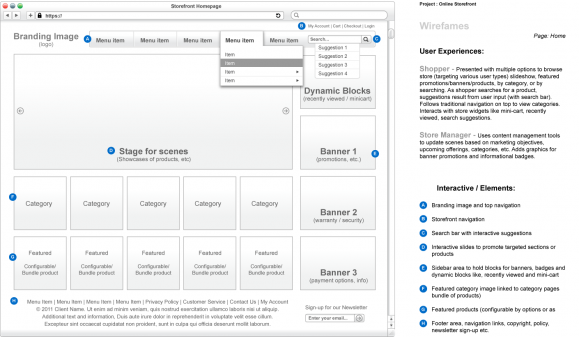
User Experiences:
Shopper - Presented with multiple options to browse store (targeting various user types) slideshow, featured promotions/banners/products, by category, or by searching. As shopper searches for a product, suggestions result from user input (with search bar). Follows traditional navigation on top to view categories. Interacts with store widgets like mini-cart, recently viewed, search suggestions.
Store Manager - Uses content management tools to update scenes based on marketing objectives, upcoming offerings, categories, etc. Adds graphics for banner promotions and informational badges.
Interactive / Elements:
- Branding image and top navigation
- Storefront navigation
- Search bar with interactive suggestions
- Interactive slides to promote targeted sections or products
- Sidebar area to hold blocks for banners, badges and dynamic blocks like, recently viewed and mini-cart
- Featured category image linked to category pages bundle of products)
- Featured products (configurable by options or as
- Footer area, navigation links, copyright, policy, newsletter sign-up etc.
- CMS structural block for adding promotional content.
Page: Category / Search Results
User Experiences:
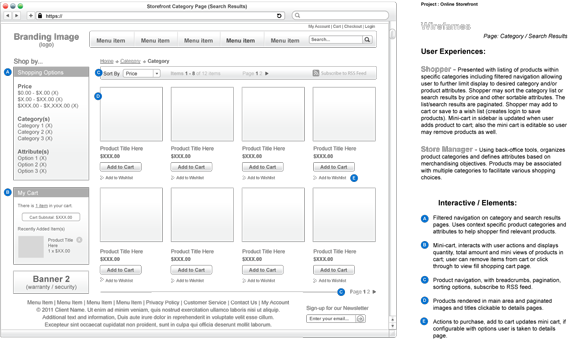
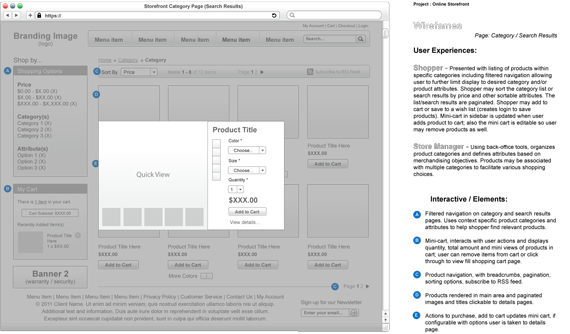
Shopper - Presented with listing of products within specific categories including filtered navigation allowing user to further limit display to desired category and/or product attributes. Shopper may sort the category list or search results by price and other sortable attributes. The list/search results are paginated. Shopper may add to cart or save to a wish list (creates login to save products). Mini-cart in sidebar is updated when user adds product to cart; also the mini cart is editable so user may remove products as well.
Store Manager - Using back-office tools, organizes product categories and defines attributes based on merchandising objectives. Products may be associated with multiple categories to facilitate various shopping choices.
Interactive / Elements:
Filtered navigation on category and search results pages. Uses context specific product categories and attributes to help shopper find relevant products.
Mini-cart, interacts with user actions and displays quantity, total amount and mini views of products in cart; user can remove items from cart or click through to view fill shopping cart page.
- Product navigation, with breadcrumbs, pagination, sorting options, subscribe to RSS feed.
- Products rendered in main area and paginated images and titles clickable to details pages.
- Actions to purchase, add to cart updates mini cart, if configurable with options user is taken to details page.
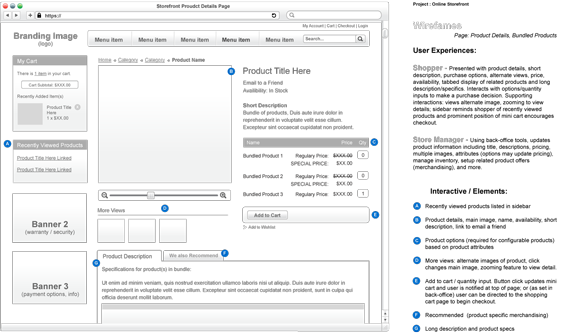
Page: Product Details
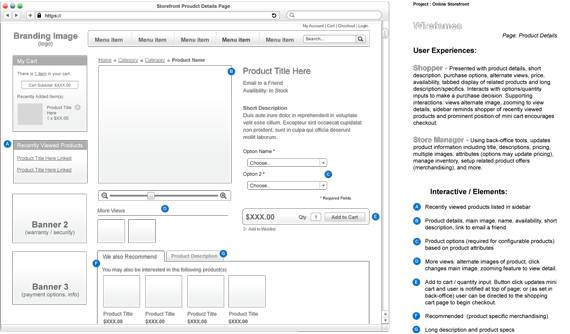
User Experiences:
Shopper - Presented with product details, short description, purchase options, alternate views, price, availability, tabbed display of related products and long description/specifics. Interacts with options/quantity inputs to make a purchase decision. Supporting interactions: views alternate image, zooming to view details; sidebar reminds shopper of recently viewed products and prominent position of mini cart encourages checkout.
Store Manager - Using back-office tools, updates product information including title, descriptions, pricing, multiple images, attributes (options may update pricing), manage inventory, setup related product offers (merchandising), and more.
Interactive / Elements:
- Recently viewed products listed in sidebar
- Product details, main image, name, availability, short description, link to email a friend
- Product options (required for configurable products) based on product attributes
- More views: alternate images of product, click changes main image, zooming feature to view detail.
- Add to cart / quantity input. Button click updates mini cart and user is notified at top of page; or (as set in back-office) user can be directed to the shopping cart page to begin checkout.
- Recommended (product specific merchandising)
- Long description and product specs
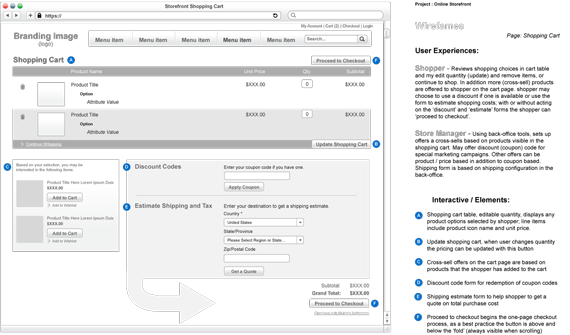
Page: Shopping Cart
User Experiences:
Shopper - Reviews shopping choices in cart table and my edit quantity (update) and remove items, or continue to shop. In addition more (cross-sell) products are offered to shopper on the cart page. shopper may choose to use a discount if one is available or use the form to estimate shopping costs; with or without acting on the ‘discount’ and ‘estimate’ forms the shopper can ‘proceed to checkout’.
Store Manager - Using back-office tools, sets up offers a cross-sells based on products visible in the shopping cart. May offer discount (coupon) code for special marketing campaigns. Other offers can be product / price based in addition to coupon based. Shipping form is based on shipping configuration in the back-office.
Interactive / Elements:
- Shopping cart table, editable quantity, displays any product options selected by shopper; line items include product icon name and unit price.
- Update shopping cart, when user changes quantity the pricing can be updated with this button
- Cross-sell offers on the cart page are based on products that the shopper has added to the cart
- Discount code form for redemption of coupon codes
- Shipping estimate form to help shopper to get a quote on total purchase cost
- Proceed to checkout begins the one-page checkout process, as a best practice the button is above and below the ‘fold’ (always visible when scrolling)
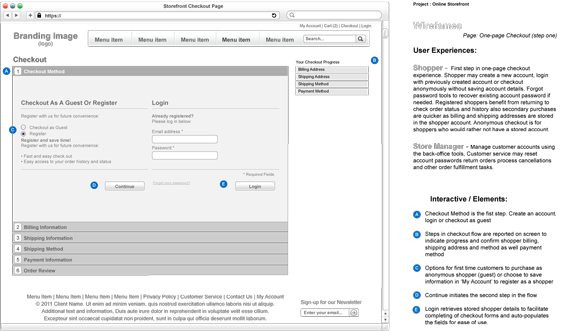
Page: One-page Checkout (step one)
User Experiences:
Shopper - First step in one-page checkout experience. Shopper may create a new account, login with previously created account or checkout anonymously without saving account details. Forgot password tools to recover existing account password if needed. Registered shoppers benefit from returning to check order status and history also secondary purchases are quicker as billing and shipping addresses are stored in the shopper account. Anonymous checkout is for shoppers who would rather not have a stored account.
Store Manager - Manage customer accounts using the back-office tools, Customer service may reset account passwords return orders process cancellations and other order fulfillment tasks.
Interactive / Elements:
- Checkout Method is the fist step. Create an account, login or checkout as guest
- Steps in checkout flow are reported on screen to indicate progress and confirm shopper billing, shipping address and method as well payment method
- Options for first time customers to purchase as anonymous shopper (guest) or choose to save information in ‘My Account’ to register as a shopper
- Continue initiates the second step in the flow
- Login retrieves stored shopper details to facilitate completing of checkout forms and auto-populates the fields for ease of use.
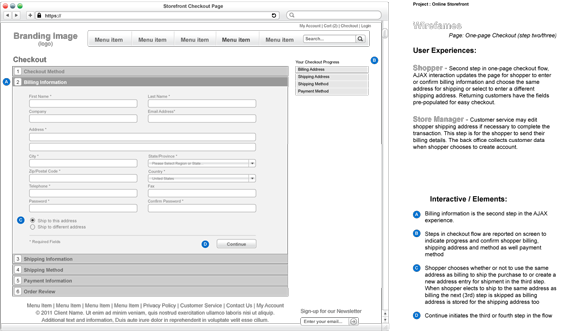
Page: One-page Checkout (step two/three)
User Experiences:
Shopper - Second step in one-page checkout flow, AJAX interaction updates the page for shopper to enter or confirm billing information and choose the same address for shipping or select to enter a different shipping address. Returning customers have the fields pre-populated for easy checkout.
Store Manager - Customer service may edit shopper shipping address if necessary to complete the transaction. This step is for the shopper to send their billing details. The back office collects customer data when shopper chooses to create account.
Interactive / Elements:
- Billing information is the second step in the AJAX experience.
- Steps in checkout flow are reported on screen to indicate progress and confirm shopper billing, shipping address and method as well payment method
- Shopper chooses whether or not to use the same address as billing to ship the purchase to or create a new address entry for shipment in the third step. When shopper elects to ship to the same address as billing the next (3rd) step is skipped as billing address is stored for the shipping address too
- Continue initiates the third or fourth step in the flow
Page: One-page Checkout (step four)
User Experiences:
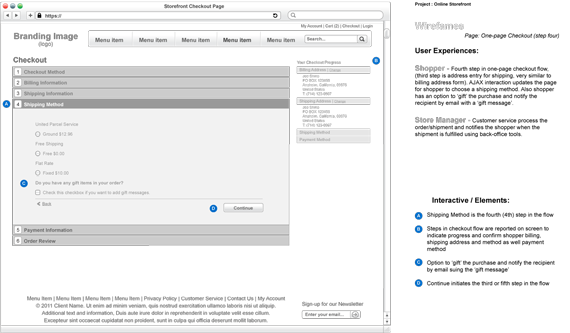
Shopper - Fourth step in one-page checkout flow, (third step is address entry for shipping, very similar to billing address form). AJAX interaction updates the page for shopper to choose a shipping method. Also shopper has an option to ‘gift’ the purchase and notify the recipient by email with a ‘gift message’.
Store Manager - Customer service process the order/shipment and notifies the shopper when the shipment is fulfilled using back-office tools.
Interactive / Elements:
- Shipping Method is the fourth (4th) step in the flow
- Steps in checkout flow are reported on screen to indicate progress and confirm shopper billing, shipping address and method as well payment method
- Option to ‘gift’ the purchase and notify the recipient by email suing the ‘gift message’
- Continue initiates the third or fifth step in the flow
Page: One-page Checkout (step five)
User Experiences:
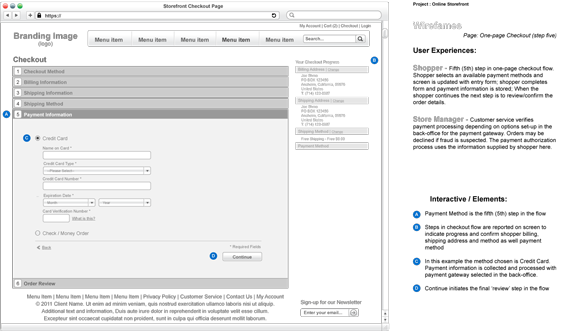
Shopper - Fifth (5th) step in one-page checkout flow. Shopper selects an available payment methods and screen is updated with entry form; shopper completes form and payment information is stored; When the shopper continues the next step is to review/confirm the order details.
Store Manager - Customer service verifies payment processing depending on options set-up in the back-office for the payment gateway. Orders may be declined if fraud is suspected. The payment authorization process uses the information supplied by shopper here.
Interactive / Elements:
- Payment Method is the fifth (5th) step in the flow
- Steps in checkout flow are reported on screen to indicate progress and confirm shopper billing, shipping address and method as well payment method
- In this example the method chosen is Credit Card. Payment information is collected and processed with payment gateway selected in the back-office.
- Continue initiates the final ‘review’ step in the flow
Page: One-page Checkout (step six)
User Experiences:
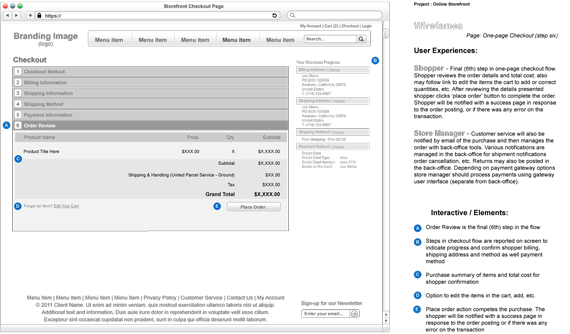
Shopper - Final (6th) step in one-page checkout flow. Shopper reviews the order details and total cost; also may follow link to edit the items the cart to add or correct quantities, etc. After reviewing the details presented shopper clicks ‘place order’ button to complete the order. Shopper will be notified with a success page in response to the order posting, or if there was any error on the transaction.
Store Manager - Customer service will also be notified by email of the purchase and then manages the order with back-office tools. Various notifications are managed in the back-office for shipment notifications order cancellation, etc. Returns may also be posted in the back-office. Depending on payment gateway options store manager should process payments using gateway user interface (separate from back-office).
Interactive / Elements:
- Order Review is the final (6th) step in the flow
- Steps in checkout flow are reported on screen to indicate progress and confirm shopper billing, shipping address and method as well payment method
- Purchase summary of items and total cost for shopper confirmation
- Option to edit the items in the cart, add, etc.
- Place order action competes the purchase. The shopper will be notified with a success page in response to the order posting or if there was any error on the transaction
Page: Checkout Success
User Experiences:
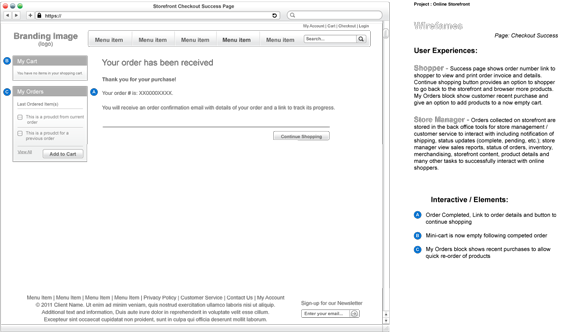
Shopper - Success page shows order number link to shopper to view and print order invoice and details. Continue shopping button provides an option to shopper to go back to the storefront and browser more products. My Orders block show customer recent purchase and give an option to add products to a now empty cart.
Store Manager - Orders collected on storefront are stored in the back office tools for store management / customer service to interact with including notification of shipping, status updates (complete, pending, etc.); store manager view sales reports, status of orders, inventory, merchandising, storefront content, product details and many other tasks to successfully interact with online shoppers.
Interactive / Elements:
- Order Completed, Link to order details and button to continue shopping
- Mini-cart is now empty following competed order
- My Orders block shows recent purchases to allow quick re-order of products